


X TO BLUESKY · SETUP WALKTHROUGH
How to cross-post from X to Bluesky automatically
Keep writing on X, distribute eligible new posts to Bluesky, and check the result without maintaining two separate publishing routines.
Before you connect: confirm the accounts and the task
This walkthrough is for automatic distribution of eligible new X posts. It is different from writing centrally in Ferryman's composer, and it is not a promise to import an entire X archive. If your main need is to prepare a future post and approve each destination version, consider direct publishing or scheduling instead.
Sign in to Ferryman and connect the X account you actually want to read from. For Bluesky, use the full handle and a dedicated app password generated in Bluesky's settings, rather than your main password. A custom PDS URL is relevant only if your account uses one. If you manage several identities, verify each account selector; two connections to the same network are not interchangeable.
Check your active-flow, account, and daily automatic-sync allowance on the current pricing page. Automatic video support requires an eligible Creator-or-higher plan. Platform authorization and a paid subscription solve different problems: a plan cannot repair an invalid app password or bypass a destination's requirements.
Set up one X-to-Bluesky sync flow
- Open Settings and connect X and Bluesky under Connections.
- Under Cross-Posting, use Add a sync flow. Choose X in the From control and confirm the origin account.
- Enable Bluesky in the To list and select the intended Bluesky account. Leave unrelated destinations off for the first test.
- Review the destination settings and your global preferences, then confirm the flow is enabled.
- Publish a new, non-sensitive original on X after the flow is ready. Record its URL so you can reconcile the result.
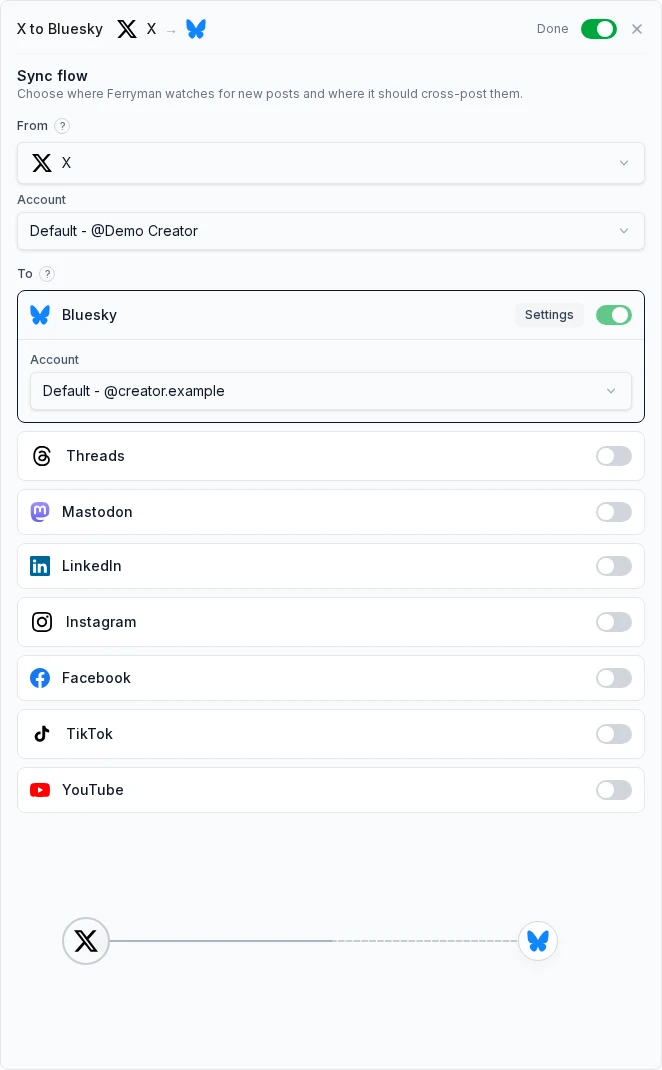
The screenshot demonstrates configuration, not delivery. A green enabled switch does not establish that a platform has accepted content. Start with one short original post so an excluded post type, media requirement, or source filter does not obscure the first account-and-routing check.
Know what changes between X and Bluesky
Bluesky's 300-character limit is separate from your X account's posting limit. If you publish longer X content, check Ferryman's Split long posts into threads preference and inspect the resulting reply chain. Numbered text and a native thread are not the same thing. For images, check both ordering and alternative text after distribution, especially when the source contains multiple attachments.
| Content | What to check |
|---|---|
| Short original text | Correct origin, destination account, and visible wording. |
| Long text or threads | Destination length, split preference, order, and native reply relationships. |
| Images | Bluesky supports up to four images; verify each description and attachment. |
| Video | Eligible plan, file limits, verified email for Bluesky-hosted accounts, and processing completion. |
| Mentions | Posts with mentions are skipped by default. If enabled, Ferryman removes the @ rather than promising a matching Bluesky identity. |
A copied @handle is not a universal identity. Review mention behavior before enabling posts containing other people's names. Replies, reposts, quotes, sponsored content, and custom filters also need deliberate review. A correctly skipped post is not necessarily a failed publication.
Verify the result, not only the enabled switch
After the source is eligible for processing, inspect Ferryman's Posts history for the destination result and any skip or failure reason. Open the actual Bluesky post, check the account, read the whole copy, follow its link, and inspect the media. Save both source and destination URLs. A queue or processing status is not proof of a completed public post, and sync timing can vary with plan and platform conditions.
For a local acceptance worksheet, record: source URL, destination account, expected content, observed status, destination URL, and next action. The first successful test establishes that one representative route worked at that time. Repeat with an image or video only if your real workflow needs it. Do not infer video eligibility from a text-only success.
If nothing appears, first confirm the selected X account, enabled flow, eligible post time, filters, and plan allowance. Then read the exact error. For Bluesky video, check email verification and current upload eligibility; for an authorization error, inspect the connected credential. Avoid sending a second copy while the first outcome is unresolved.
Keep a post on X, and avoid reverse-route duplicates
Add the supported #noferry marker when a source post should stay on its original platform. Eligible paid plans can also use a private, case-sensitive skip phrase. Review these controls before publishing sensitive or destination-specific material; do not assume an X audience restriction is automatically reproduced on Bluesky.
A separate Bluesky-to-X flow is a different route. Ferryman records its own published copies to avoid redistributing them, but independent tools do not necessarily share that history. Map all publishers before enabling a reverse path. Likewise, do not assume editing or deleting the original propagates to every copy: inspect and correct each destination through its supported controls.
Sources and evidence
Product controls reviewed October 17, 2026. The screenshot is a local UI demonstration, not an independently verified live X-to-Bluesky publishing result. Platform rules may change.